Before you begin
Sign in to your school’s SOLASTIAN workspace and open SOL Booking. Your school administrator must have enabled the module and configured the rooms. The options you see depend on your role and the school’s setup.
For this example, imagine arranging a staff meeting for 12 people. You need a suitable room, a date, a start and end time, and a clear booking title. Decide whether it is a one-off meeting or a regular event before you start.
1. Read the weekly calendar
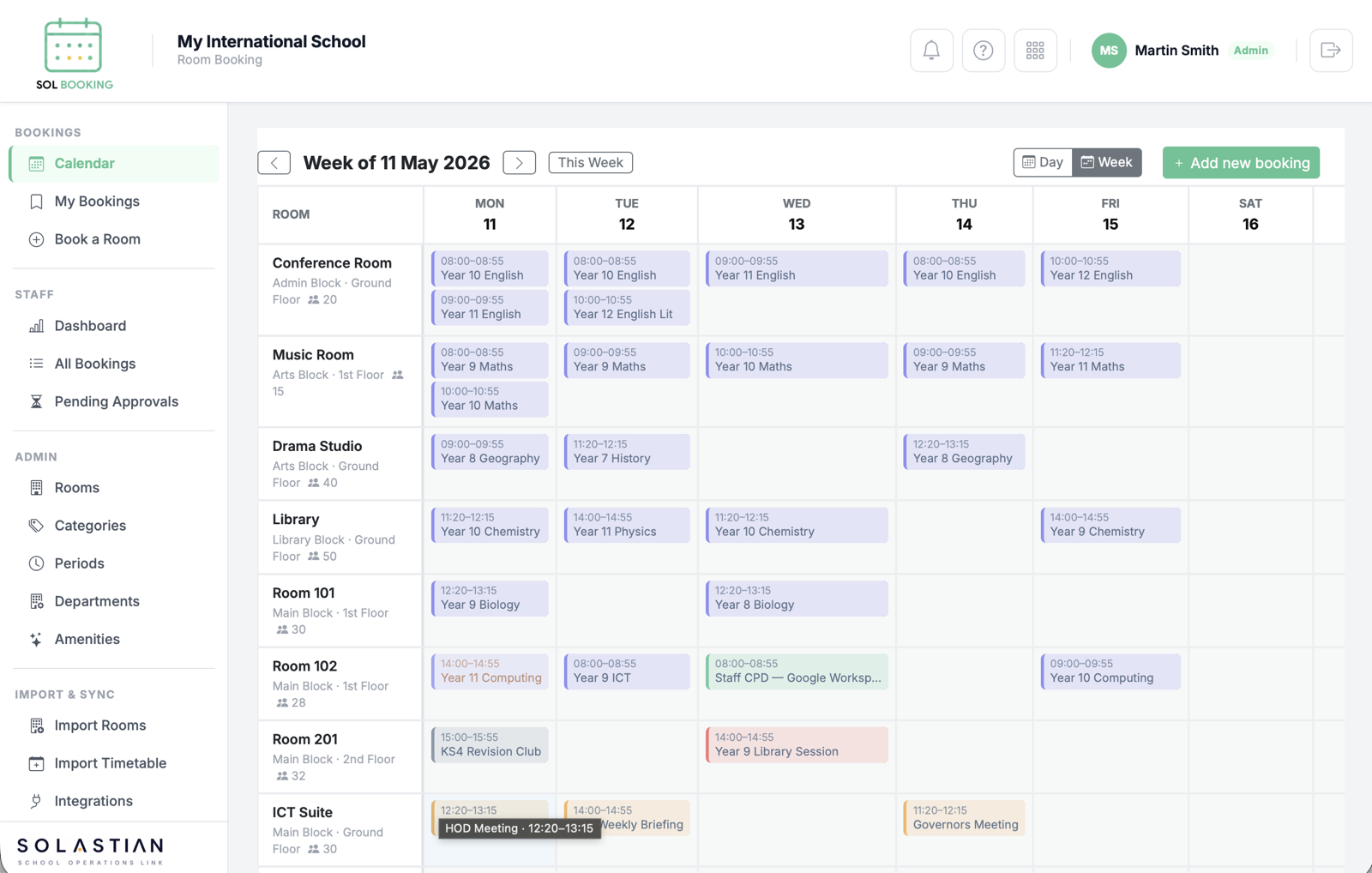
Open Calendar and choose Week to compare the rooms across several days. Use the previous and next arrows to move between weeks, or This Week to return to the current one. Day gives you a closer view of a single date.
In the example below, rooms are listed down the left with location and capacity information. Coloured booking blocks show titles and times. Check both the room’s capacity and its existing bookings; an empty space in the calendar is a starting point, not a substitute for the checks made when you submit.
2. Enter the booking details
Choose Add new booking or Book a Room. Select the room, enter a recognisable title such as “Staff planning meeting”, and choose the date and start and end times. Where your school has configured periods, a period button can fill the times for you.
Use notes for information colleagues need to understand the booking. Check that the end time is after the start time and that the selected room is the one you intended before submitting.
- Room: choose a space with enough capacity for your group.
- Title: use a name colleagues can recognise in the calendar.
- Date and time: include the time you actually need the room.
- Notes: include useful booking context without unnecessary personal information.
3. Resolve a clash before making plans
SOL Booking checks the selected room and time when you submit. If the slot conflicts with another booking, choose another room or time. The conflict screen also offers a waiting list for the occupied slot.
Joining the waiting list does not reserve the room. Treat your event as unconfirmed until you have a confirmed booking. If a slot becomes available, follow the notification and check availability again.
4. Check whether approval is required
Rooms can be configured to require approval. For those rooms, your submission is marked pending for the room manager to review. A submission for a room without that requirement is confirmed when the booking is accepted.
Room managers can use Pending Approvals to review requests. Staff should check the booking’s status before telling attendees that the venue is confirmed. “Pending” and “confirmed” describe different stages of the process.
5. Review repeat bookings date by date
For a recurring meeting, choose daily or weekly repetition and a repeat-until date. Weekly repetition lets you select the days of the week. The form supports up to 52 occurrences.
Dates with conflicts are skipped automatically. The result message reports how many bookings were created and how many were skipped because of conflicts. Review the calendar for the full period so that you can arrange an alternative for any missing date. A successful series submission does not mean every requested date was available.
6. Keep the calendar accurate when plans change
Open My Bookings to review your reservations. If your meeting is cancelled, cancel the booking so that other staff can use the space. For recurring bookings, check whether you are cancelling one occurrence or the remaining series before confirming.
Return to the calendar and check the affected dates. Keeping cancellations and changes in the same system helps colleagues make decisions from the current schedule.
Try these three checks in your school demo
Use a demonstration workspace with your operations team to see how the workflow fits your school’s room policies. Agree who manages rooms, who approves requests and how staff should handle repeat-date conflicts.
- Create a booking for an available room and confirm it appears in the calendar.
- Try the same room and time again to see the conflict and waiting-list workflow.
- Use an approval-required room and a short recurring series; check the statuses and any skipped dates.
See the workflow with your team
SOL Booking is one of SOLASTIAN’s nine school operations modules. The Full Suite starts from €7,000 per school per year. Individual module scope and pricing are quoted separately.
Bring your room list, timetable structure and approval requirements to a demo. We can use those requirements to discuss the setup your school needs.